Function Description
This article mainly introduces how to dynamically turn on and off the camera and microphone during a call and detect the microphone and camera on/off state of remote users
Dynamically turn on/off microphone and camera
The following plans have their own advantages, and you can choose according to project requirements.
In the following three plans, the behaviors are consistent:
- After turning off the camera, other users in the room will receive the TRTC.EVENT.REMOTE_VIDEO_UNAVAILABLE event.
- After turning on the camera, other users in the room will receive the TRTC.EVENT.REMOTE_VIDEO_AVAILABLE event.
- After turning off the microphone, other users in the room will receive the TRTC.EVENT.REMOTE_AUDIO_UNAVAILABLE event.
- After turning on the microphone, other users in the room will receive the TRTC.EVENT.REMOTE_AUDIO_AVAILABLE event.
Plan One (Recommended): Use updateLocalVideo() updateLocalAudio() mute parameter.
This plan turns off the microphone and camera, but does not stop device collection. The camera and microphone "collection lights" will be on. This plan is a "software-level" operation to turn off the device, so its advantage is that it is faster to reopen the device.
// First time opening the camera
await trtc.startLocalVideo();
// Turn off the camera. After turning off the camera, the camera preview screen will become black, and you can display the business side's own UI mask at this time.
await trtc.updateLocalVideo({ mute: true });
// Turn on the camera
await trtc.updateLocalVideo({ mute: false });
Since it takes some time for the microphone to start, the user's voice may be missed during this period. Therefore, we recommend that you use this plan to implement the mute and unmute functions instead of stopLocalAudio in Plan Two.
In addition, after updateLocalAudio({ mute: true }), a very low bit rate mute packet will be sent.
This is very suitable for scenarios that need cloud recording, because video files in formats such as MP4 have high requirements for the continuity of audio data. Using stopLocalAudio will cause the recorded MP4 file to be difficult to play. Therefore, in scenarios where the quality of the recording file is relatively high, it is recommended to choose this plan.
// First time opening the microphone
await trtc.startLocalAudio();
// Turn off the microphone
await trtc.updateLocalAudio({ mute: true });
// Turn on the microphone
await trtc.updateLocalAudio({ mute: false });
Mute Microphone Only (Keep Mixed Audio)
If you are using audio mixing (such as background music), you can use mute: 'microphone' to mute only the microphone input while keeping the mixed audio playing:
// Mute microphone only, mixed audio continues to be sent
await trtc.updateLocalAudio({ mute: 'microphone' });
// Unmute microphone
await trtc.updateLocalAudio({ mute: false });
Note: If you are not using audio mixing,
mute: 'microphone'behaves the same asmute: true.
Detect whether the user is talking after the user mutes the microphone.
Use the muteKeepVolumeDetection parameter to continue detecting volume while muted:
const trtc = TRTC.create();
await trtc.startLocalAudio();
// Enable volume detection
trtc.enableAudioVolumeEvaluation();
trtc.on(TRTC.EVENT.AUDIO_VOLUME, event => {
  event.result.forEach(item => {
    // userId === '' represents local volume
    // It is generally believed that when volume is greater than 10, the user is talking
    if (item.userId === '' && item.volume > 10) {
      // The user is speaking
    }
  })
});
// Mute microphone while keeping volume detection
await trtc.updateLocalAudio({ mute: true, muteKeepVolumeDetection: true });
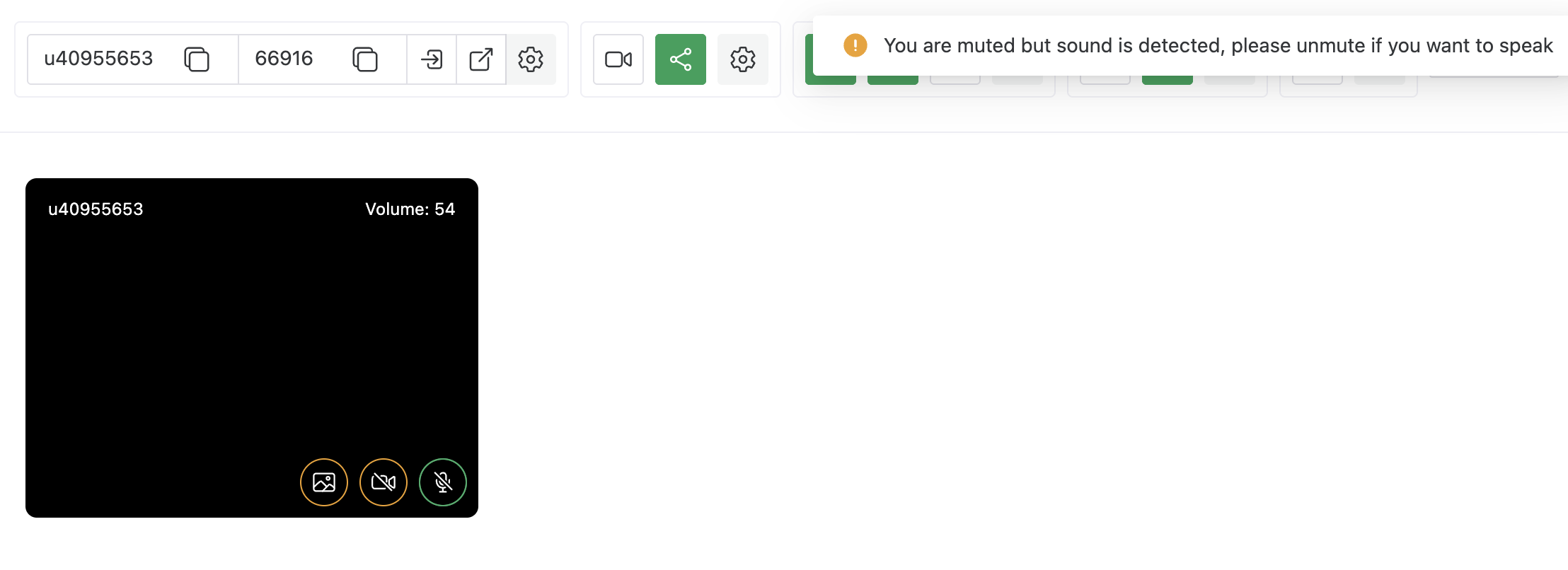
When muteKeepVolumeDetection: true is set:
- The microphone will continue capturing internally (for volume detection)
- But the audio stream will be muted (not sent to remote users)
- The
AUDIO_VOLUMEevent will still trigger local volume callbacks
Plan Two: Use stopLocalVideo() stopLocalAudio() method
After turning off the microphone and camera in this plan, the device collection will stop, and the camera and microphone "collection lights" will go out. When the camera is reopened, the camera will be recollected.
// Turn off the camera
await trtc.stopLocalVideo();
// Turn on the camera
// 'local-video' is the element id in the DOM used to play the local camera video container.
await trtc.startLocalVideo({ view: 'local-video' });
// Turn off the microphone
await trtc.stopLocalAudio();
// Turn on the microphone
await trtc.startLocalAudio();
Plan Three: Use updateLocalVideo() updateLocalAudio() publish parameter.
This plan turns off the microphone and camera, but does not stop device collection. The camera and microphone "collection lights" will be on. The difference between this plan and Plan Two is that after turning off the camera, the local camera can still preview the camera screen, and other users in the room cannot see the local camera.
// First time opening the camera
await trtc.startLocalVideo();
// Turn off the camera. After turning off the camera, the local camera can still preview the camera screen, and other users in the room cannot see the local camera.
await trtc.updateLocalVideo({ publish: false });
// Turn on the camera
await trtc.updateLocalVideo({ publish: true });
// First time opening the microphone
await trtc.startLocalAudio();
// Turn off the microphone
await trtc.updateLocalAudio({ publish: false });
// Turn on the microphone
await trtc.updateLocalAudio({ publish: true });
Set placeholder image on camera stream
Since trtc-sdk-v5@5.4.0, startLocalVideo() and updateLocalVideo() supports setting placeholder image on camera stream.
This will let both the local video and the remote video to be displayed as the placeholder image, achieving a soft mute effect. Note that the remote user will not receive the mute event. it does not support calling when the camera is turned off.
Note that if the camera is already in the mute state before setting, other users in the room will receive the REMOTE_AUDIO_AVAILABLE event after setting the shim.
Screen sharing does not currently support setting spacers.
await trtc.startLocalVideo({ mute: 'https://...' });
// or
await trtc.updateLocalVideo({ mute: 'https://...' }); // some image url
Detecting the microphone and camera on/off state of remote users
Suppose there are two users A and B.
- After A enters the room successfully, if there is another anchor B in the room, A will receive REMOTE_USER_ENTER event.
- At this point, A can assume that B has not turned on the microphone or camera.
- If A receives a REMOTE_AUDIO_AVAILABLE or REMOTE_VIDEO_AVAILABLE event from B, it means B has turned on the microphone or camera.