Feature Description
This document describes how to use the CDNStreaming plugin to implement cloud-based stream mixing, relaying streams to CDN, and pushing mixed streams back to TRTC rooms.
Prerequisites
- TRTC SDK version must be >= 5.1.
- Enable Tencent Cloud Live service.
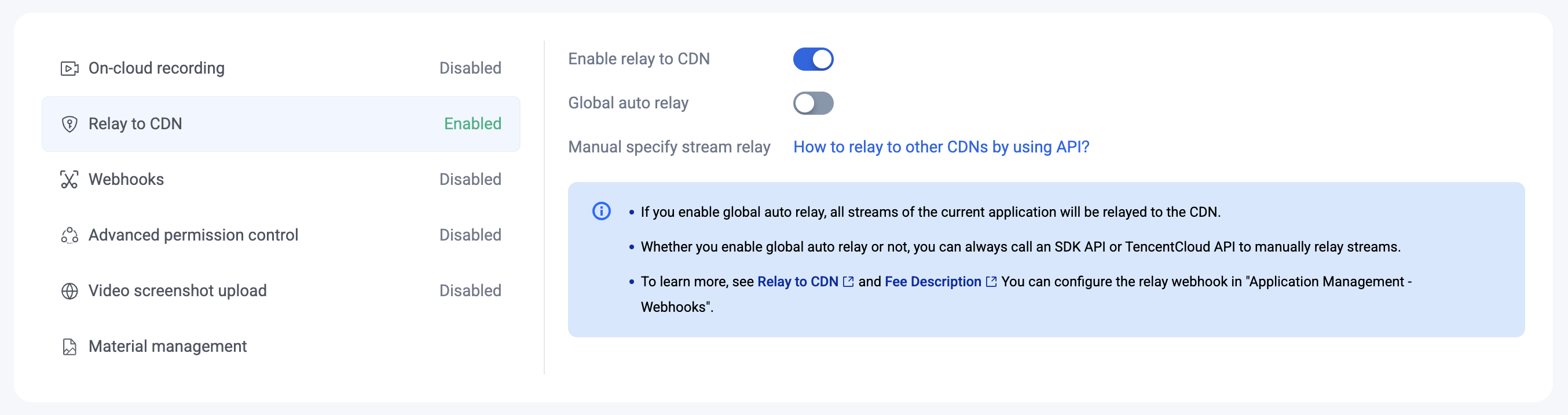
- In the TRTC Console - Advanced Features, click "Relay to CDN", and enable the "Enable relay to CDN" switch.
- When the "Global auto relay" switch is enabled, all upstream audio and video streams in TRTC will be automatically relayed to Tencent Cloud CDN ("Global Auto relay" mode).
- When the "Global auto relay" switch is disabled, you can use this plugin or the server REST API to relay specific audio and video streams to the CDN and specify the playback address ("Designated Stream relay" mode).
Getting Started
Install & Register
import TRTC from 'trtc-sdk-v5';
import { CDNStreaming, PublishMode } from 'trtc-sdk-v5/plugins/cdn-streaming';
const trtc = TRTC.create({ plugins: [CDNStreaming] });
Plugin Modes Overview
This plugin provides four streaming modes:
| Mode | PublishMode | Description |
|---|---|---|
| A | PublishMainStreamToCDN |
Relay camera and microphone stream to CDN |
| B | PublishSubStreamToCDN |
Relay screen sharing stream to CDN |
| C | PublishMixStreamToCDN |
Mix multiple streams and relay to CDN |
| D | PublishMixStreamToRoom |
Mix multiple streams and push back to TRTC room |
For each mode, the following lifecycle applies:
trtc.startPlugin('CDNStreaming', options)- Start the plugintrtc.updatePlugin('CDNStreaming', options)- Update parameters (0 or N times)trtc.stopPlugin('CDNStreaming', options)- Stop the plugin
For detailed options parameters, see CDNStreamingOptions.
Relay Single Stream to CDN
Relay camera stream (Mode A) or screen sharing stream (Mode B) to Tencent Cloud CDN.
Step 1: Select Relay Mode
In TRTC Console - Advanced Features, select your relay mode:
Global Auto-Relay Mode:
Streams will be automatically pushed to CDN with default playback address:
http://[playback-domain]/live/[streamId].flv
[playback-domain]: The playback domain configured in Domain Management- Default
[streamId]for camera:${sdkAppId}_${roomId}_${userId}_main - Default
[streamId]for screen sharing:${sdkAppId}_${roomId}_${userId}_aux - When roomId or userId contains special characters, streamId uses MD5:
${sdkAppId}_${md5(${roomId}_${userId}_main)}
Manual Relay Mode:
Streams will not be automatically pushed. Follow Step 2 to manually enable streaming.
Step 2: Start Relay
// Start relaying camera stream
const options = {
  target: {
    publishMode: PublishMode.PublishMainStreamToCDN
  }
}
try {
  await trtc.startPlugin('CDNStreaming', options);
} catch (error) {
  console.error('CDNStreaming start failed', error);
}
Playback address: http://[playback-domain]/live/${sdkAppId}_${roomId}_${userId}_main.flv
Step 3: Update StreamId (Optional)
// Customize the playback address
const options = {
  target: {
    publishMode: PublishMode.PublishMainStreamToCDN,
    streamId: 'stream001'
  }
}
try {
  await trtc.updatePlugin('CDNStreaming', options);
} catch (error) {
  console.error('CDNStreaming update failed', error);
}
New playback address: http://[playback-domain]/live/stream001.flv
Step 4: Stop Relay
const options = {
  target: {
    publishMode: PublishMode.PublishMainStreamToCDN,
  }
}
try {
  await trtc.stopPlugin('CDNStreaming', options);
} catch (error) {
  console.error('CDNStreaming stop failed', error);
}
You can view the current stream status through the Stream Management Interface.
Relay Mixed Stream to CDN
Mix multiple audio and video streams in the room into one stream and relay to CDN.
For other platform implementations, please refer to Cloud-Based Stream Mixing and Transcoding.
How It Works
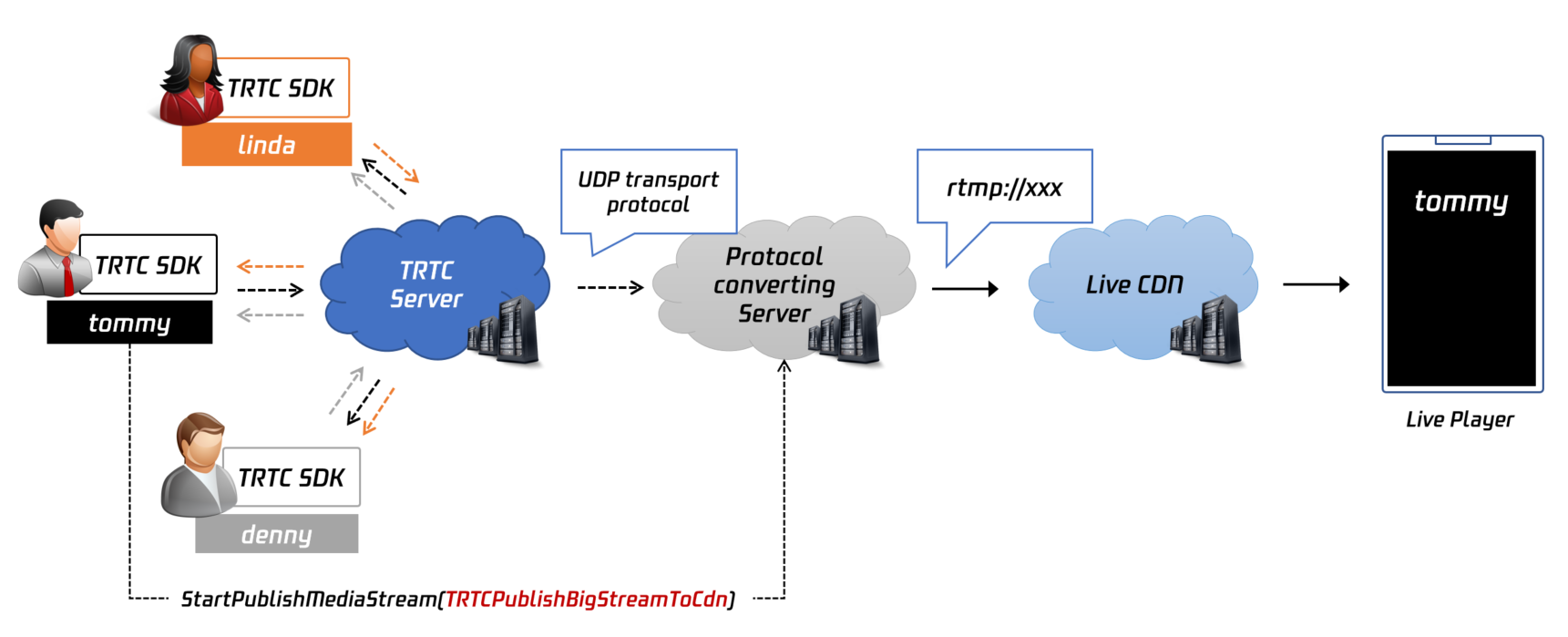
This plugin sends a command to Tencent Cloud's transcoding server to mix multiple streams. You can customize:
encoding: Output stream quality (resolution, bitrate, framerate)mix: Layout configuration for mixed streams
Example Workflow
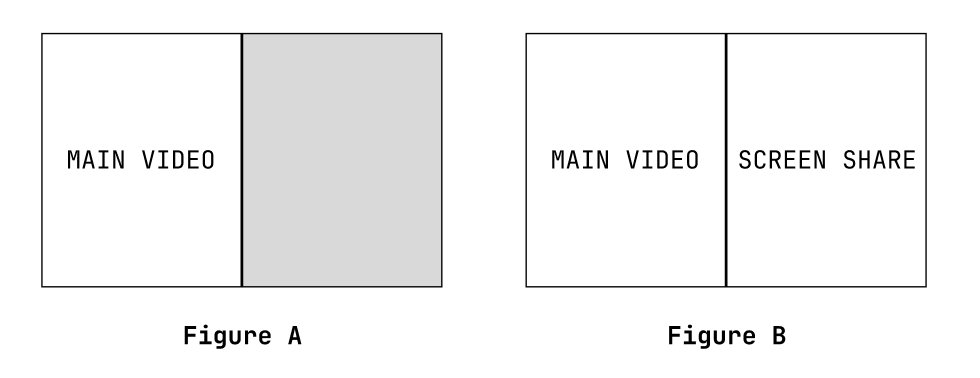
- Call
startPlugin, the mixing layout is as shown in Figure A - Call
updatePluginto add screen sharing, the mixing layout is as shown in Figure B - Call
stopPluginwhen mixing is no longer needed
Configuration Guide
-
Set
target.publishModetoPublishMode.PublishMixStreamToCDN -
Configure
encodingfor output quality: videoWidth, videoHeight, videoBitrate, videoFramerate, videoGOP, audioSampleRate, audioBitrate, audioChannels -
Configure
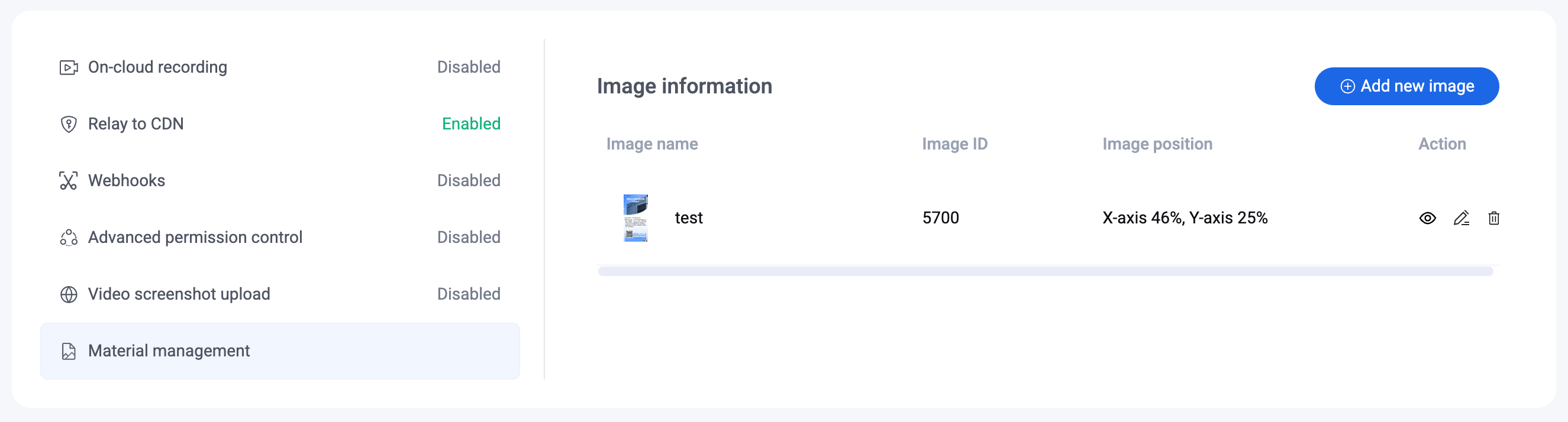
mix.backgroundColorandmix.backgroundImagefor backgroundBackground images need to be uploaded in TRTC Console - Advanced Features > Material management. Use the "Image ID" as string for backgroundImage (e.g., "63").
-
Configure
mix.audioMixUserListfor audio mixing (empty = mix all users) -
Configure
mix.videoLayoutListfor video layout
Coordinate system: the origin (0, 0) is the top-left corner of the output canvas, in pixels. locationX/locationY is the top-left position of each stream; width/height is the layout region size. Coordinates/sizes are tied to encoding.videoWidth/videoHeight - if you change resolution, scale layout parameters accordingly to avoid misalignment.
For full parameter details, see CDNStreamingOptions.
Start Mixing
let options = {
  target: {
    publishMode: PublishMode.PublishMixStreamToCDN,
    streamId: 'mix-stream',
  },
  encoding: {
    videoWidth: 1280,
    videoHeight: 720,
    videoBitrate: 1500,
    videoFramerate: 15,
  },
  mix: {
    audioMixUserList: [
      { userId: 'current_user_id' }
    ],
    videoLayoutList: [
      {
        fixedVideoUser: { userId: 'current_user_id' },
        width: 640,
        height: 480,
        locationX: 0,
        locationY: 0,
        fixedVideoStreamType: TRTC.TYPE.STREAM_TYPE_MAIN,
        zOrder: 1
      },
    ]
  }
};
try {
  await trtc.startPlugin('CDNStreaming', options);
} catch (error) {
  console.error('CDNStreaming start failed', error);
}
Playback address: http://[playback-domain]/live/mix-stream.flv
Update Layout
// Add screen sharing to the mix
let options = {
  target: {
    publishMode: PublishMode.PublishMixStreamToCDN,
    streamId: 'mix-stream',
  },
  encoding: {
    videoWidth: 1280,
    videoHeight: 720,
    videoBitrate: 1500,
    videoFramerate: 15,
  },
  mix: {
    audioMixUserList: [
      { userId: 'current_user_id' }
    ],
    videoLayoutList: [
      {
        fixedVideoUser: { userId: 'current_user_id' },
        width: 640,
        height: 480,
        locationX: 0,
        locationY: 0,
        fixedVideoStreamType: TRTC.TYPE.STREAM_TYPE_MAIN,
        zOrder: 1
      },
      {
        fixedVideoUser: { userId: 'current_user_id' },
        width: 640,
        height: 480,
        locationX: 640,
        locationY: 0,
        fixedVideoStreamType: TRTC.TYPE.STREAM_TYPE_SUB,
        zOrder: 1
      },
    ]
  }
}
try {
  await trtc.updatePlugin('CDNStreaming', options);
} catch (error) {
  console.error('CDNStreaming update failed', error);
}
Stop Mixing
let options = {
  target: {
    publishMode: PublishMode.PublishMixStreamToCDN,
  }
}
try {
  await trtc.stopPlugin('CDNStreaming', options);
} catch (error) {
  console.error('CDNStreaming stop failed', error);
}
Push to Third-party CDN
Push streams to a CDN from any cloud service provider.
Step 1: Get CDN Push Address
Obtain a CDN stream push address (url) from your cloud service provider.
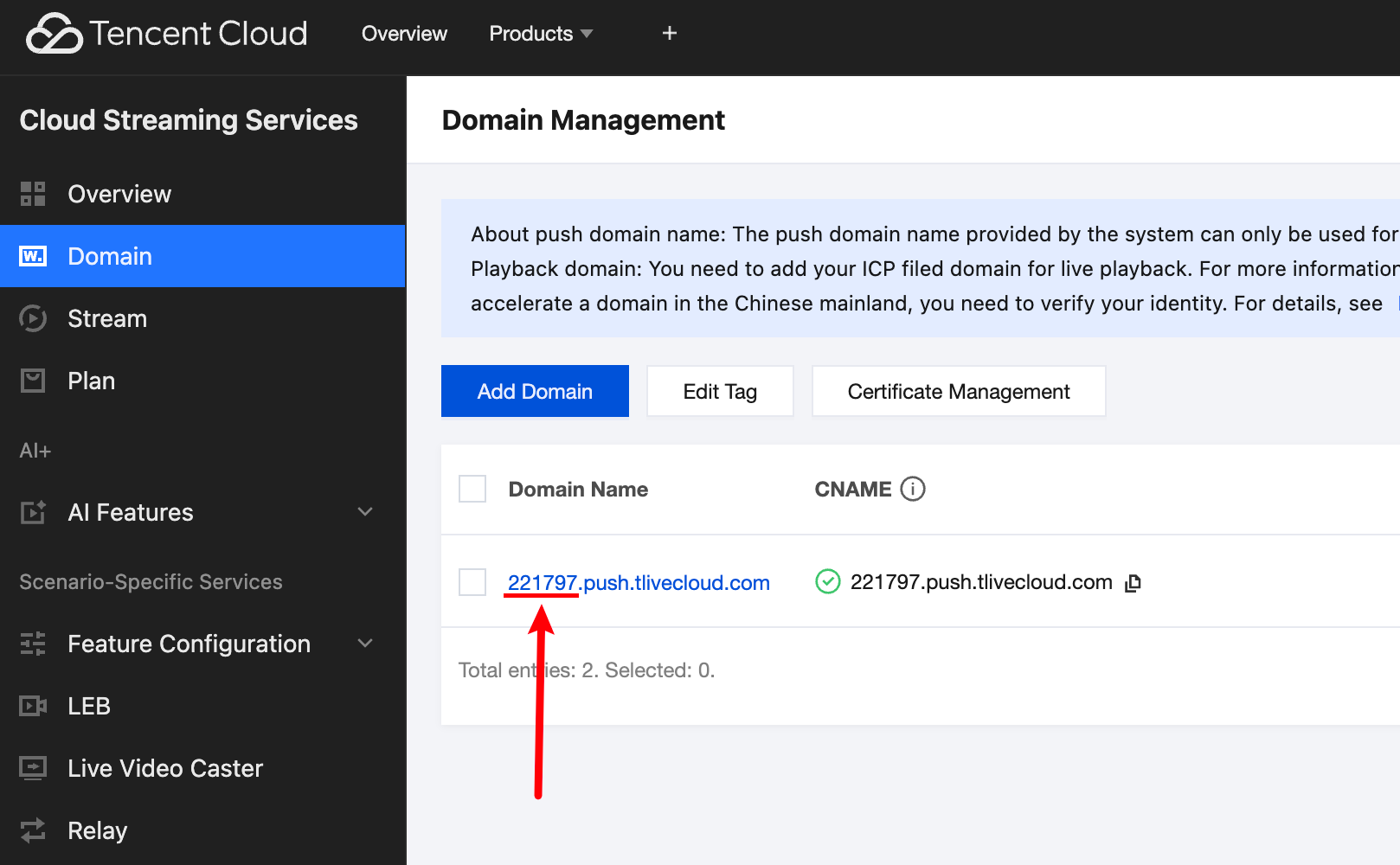
Step 2: Get bizId and appId
In TRTC Console - Advanced Features, find your push domain (format: xxxxx.push.tlivecloud.com):
xxxxxis thebizId- Use your SDKAppId as
appId
Step 3: Start Publishing
let options = {
  target: {
    publishMode: PublishMode.PublishMainStreamToCDN,
    appId: 0,    // Your appId
    bizId: 0,    // Your bizId
    url: ''      // Your CDN push address
  }
};
try {
  await trtc.startPlugin('CDNStreaming', options);
} catch (error) {
  console.error('CDNStreaming start customCDN failed', error);
}
Stop Publishing
let options = {
  target: {
    publishMode: PublishMode.PublishMainStreamToCDN,
  }
}
try {
  await trtc.stopPlugin('CDNStreaming', options);
} catch (error) {
  console.error('CDNStreaming stop customCDN failed ', error);
}
Push Back to TRTC Room
Mix streams and push the mixed stream back to a specified TRTC room as a robot user.
Note:
- A stream-pulling robot with userId
mcu_robot_${roomId}_${userId}will automatically enter the current room. Avoid userId conflicts.- This feature will incur transcoding fees for stream mixing.
- When
audioMixUserListis empty, all users are mixed by default. Pass a non-existent userId if you don't need audio mixing.- For full parameter details, see CDNStreamingOptions.
Start Push Back
// User user_123 in room 3333 initiates this task
// Mixed stream will be published as robot push_back_user_321 in room 4444
let options = {
  target: {
    publishMode: PublishMode.PublishMixStreamToRoom,
    robotUser: {
      userId: 'push_back_user_321', // Recommend dynamic generation
      roomId: 4444,
    }
  },
  encoding: {
    videoWidth: 1280,
    videoHeight: 720,
    videoBitrate: 1500,
    videoFramerate: 15,
  },
  mix: {
    audioMixUserList: [
      { userId: 'user_123', roomId: 3333 }
    ],
    videoLayoutList: [
      {
        fixedVideoUser: { userId: 'user_123', roomId: 3333 },
        width: 640,
        height: 480,
        locationX: 0,
        locationY: 0,
        fixedVideoStreamType: TRTC.TYPE.STREAM_TYPE_MAIN,
        zOrder: 1
      },
      {
        fixedVideoUser: { userId: 'user_123', roomId: 3333 },
        width: 640,
        height: 480,
        locationX: 640,
        locationY: 0,
        fixedVideoStreamType: TRTC.TYPE.STREAM_TYPE_SUB,
        zOrder: 1
      },
    ]
  }
};
try {
  await trtc.startPlugin('CDNStreaming', options);
} catch (error) {
  console.error('CDNStreaming start push stream to room failed', error);
}
Update Layout
let options = {
  target: {
    publishMode: PublishMode.PublishMixStreamToRoom
  },
  mix: {
    videoLayoutList: [
      {
        fixedVideoUser: { userId: 'user_123', roomId: 3333 },
        width: 640,
        height: 480,
        locationX: 640,
        locationY: 0,
        fixedVideoStreamType: TRTC.TYPE.STREAM_TYPE_MAIN,
        zOrder: 1
      }
    ]
  }
};
try {
  await trtc.updatePlugin('CDNStreaming', options);
} catch (error) {
  console.error('CDNStreaming update push stream to room failed', error);
}
Stop Push Back
let options = {
  target: {
    publishMode: PublishMode.PublishMixStreamToRoom,
  }
}
try {
  await trtc.stopPlugin('CDNStreaming', options);
} catch (error) {
  console.error('CDNStreaming stop push stream to room failed ', error);
}
API Description
For startPlugin('CDNStreaming', options) and updatePlugin('CDNStreaming', options), parameter types can be found in CDNStreamingOptions.
For stopPlugin('CDNStreaming', options), the parameter only needs to fill in the options.target.publishMode field.
Notes
-
To record mixed audio streams, please refer to Cloud Recording.
-
Cloud-based stream mixing and transcoding requires decoding and re-encoding the audio and video streams input to the MCU cluster, which will incur additional service costs. Therefore, TRTC will charge users who use the MCU cluster for cloud-based stream mixing and transcoding an additional value-added fee. Cloud-based stream mixing and transcoding fees are based on the resolution of the transcoded output and transcoding duration. The higher the resolution of the transcoded output and the longer the transcoding time, the higher the cost. For details, please refer to Cloud-Based Stream Mixing and Transcoding Billing Description.
-
For audio and video duration billing, please refer to Billing Description.
-
After leaving the room, billing will not continue, but when re-entering the room, it will automatically continue to start. If you want to directly terminate CDN relay and mixing, please execute stopPlugin for the corresponding publishMode.
FAQ
Q. Unable to stop streaming?
Please check if "Global Auto-Relay" is enabled in the console. In this mode, streaming cannot be stopped through the API.
Q. How to view all current streams?
You can view the current stream status through the Stream Management Interface.
Q. Screen sharing is blurry?
The SDK uses 1080p parameter configuration by default to capture screen sharing. Please refer to the interface: startScreenShare